A lot of the messiest data in small businesses gets entered on a phone, in a hurry, between one job and the next. That’s simply what happens when the people doing the work are out in the field and the record needs updating now. This week, JuicyCRM added five new mobile app custom fields for contacts and opportunities, along with validation rules that catch mistakes before they’re saved.
Does that sound like your team? Then you’ll like this part: the validation rules you set on the web now come with them into the app, so a follow-up date in the past or a link from the wrong domain gets caught before it’s saved.
Your Team Lives in the Mobile App, So the Data Needs to Work There Too
I was talking with a business owner recently about an electrician we work with. His team don’t have their own work mobile numbers anymore. They all use the mobile app, they message clients through it, and every conversation sits into the system. For a team like that, the phone is the office.
That’s the shift a lot of trade and service businesses are making. The desk is where you set things up. The phone is where the work actually gets recorded.
So when a field only works properly on the web version, your team either waits until they’re back at a computer or does a rough job of it on the go. Neither is great. Things get forgotten, or a link gets pasted in the wrong place, or a time gets typed in a format nobody else can read.
The benefit of having proper field types in the app is that your team can capture information properly at the moment it happens, wherever they are.
Five New Mobile App Custom Fields for Contacts and Opportunities
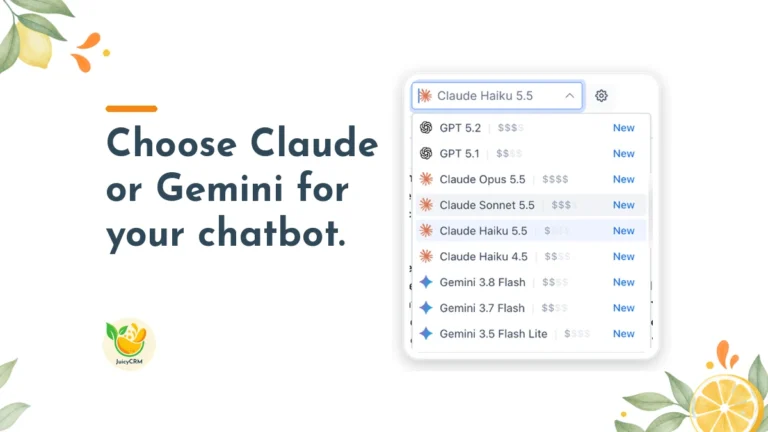
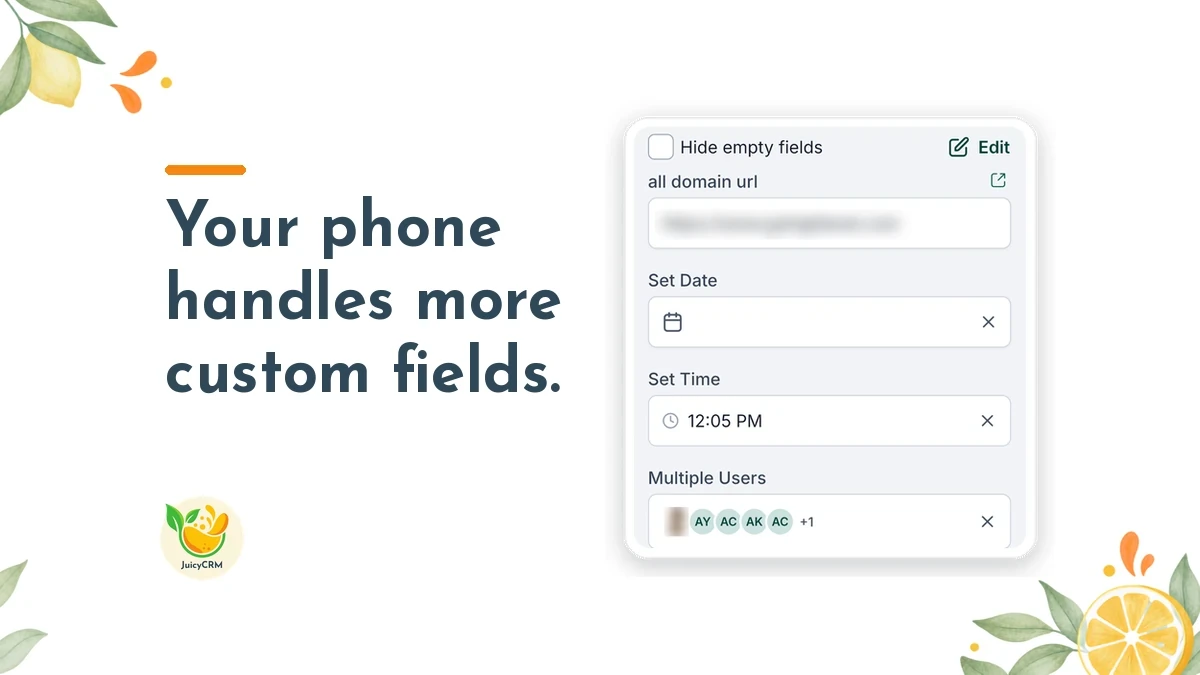
Contacts and opportunities in the mobile app now support five new custom field types. Each one is built for a specific kind of information, and each one behaves the way you’d expect on a phone.
- URL fields hold links, and links open with one tap. A link to a shared folder, a quote, a property listing or a client’s website is right there when your team needs it.
- Date & Time fields hold a date and a time together, which suits appointments, site visits and anything with a specific start.
- Time fields hold a time on its own, such as a preferred call-back time or an arrival window.
- User fields link a record to a team member, and they show your team members as avatars, so it’s easy to see at a glance who’s looking after what.
- Rich Text fields keep their formatting, so notes with bullet points, bold text or line breaks still read properly on a small screen.
All five work in the app for both contacts and opportunities, inside the folders you add them to.
Validation Rules Carry Through to Your Mobile App Custom Fields
Validation rules are what keep your data clean. When you set validation rules on a field in the web version, those same rules are checked as your team edits that field on their phone.
That means mistakes are caught before they’re saved, not weeks later when someone runs a report or tries to follow up. Here are the kinds of rules that now carry through to the app:
- Approved link domains limit a URL field to links from the domains you choose.
- Future-only dates stop someone from booking a follow-up in the past by accident.
- Blocked weekdays keep dates off days you don’t work.
- Time ranges keep a time inside the hours you set, like 9am to 5pm.
Here’s why this matters. A lot of data problems in a CRM come from small slips, not big mistakes. Someone enters a date as last month instead of next month. A time lands outside business hours. A link comes from a personal drive instead of the shared one. Each slip seems minor until a reminder goes out on the wrong day or a team member can’t open the file they need.
When the app checks those rules for you, your team doesn’t have to remember them all. The system holds the standard, and your team can get on with the job.
Setting Up Mobile App Custom Fields Starts on the Web
You build these fields once on the web, and they show up in the app automatically. So start at your desk:
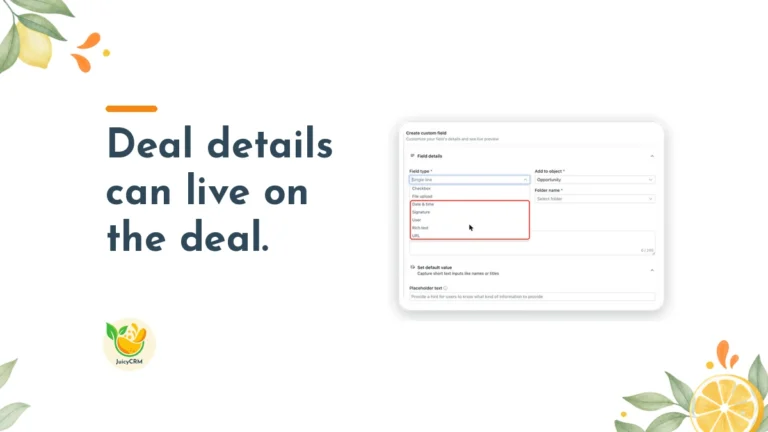
- On the web, open your custom fields settings.
- Add a URL, Date & Time, Time, User or Rich Text field to a contact or opportunity folder.
- Set any validation rules you want and save.
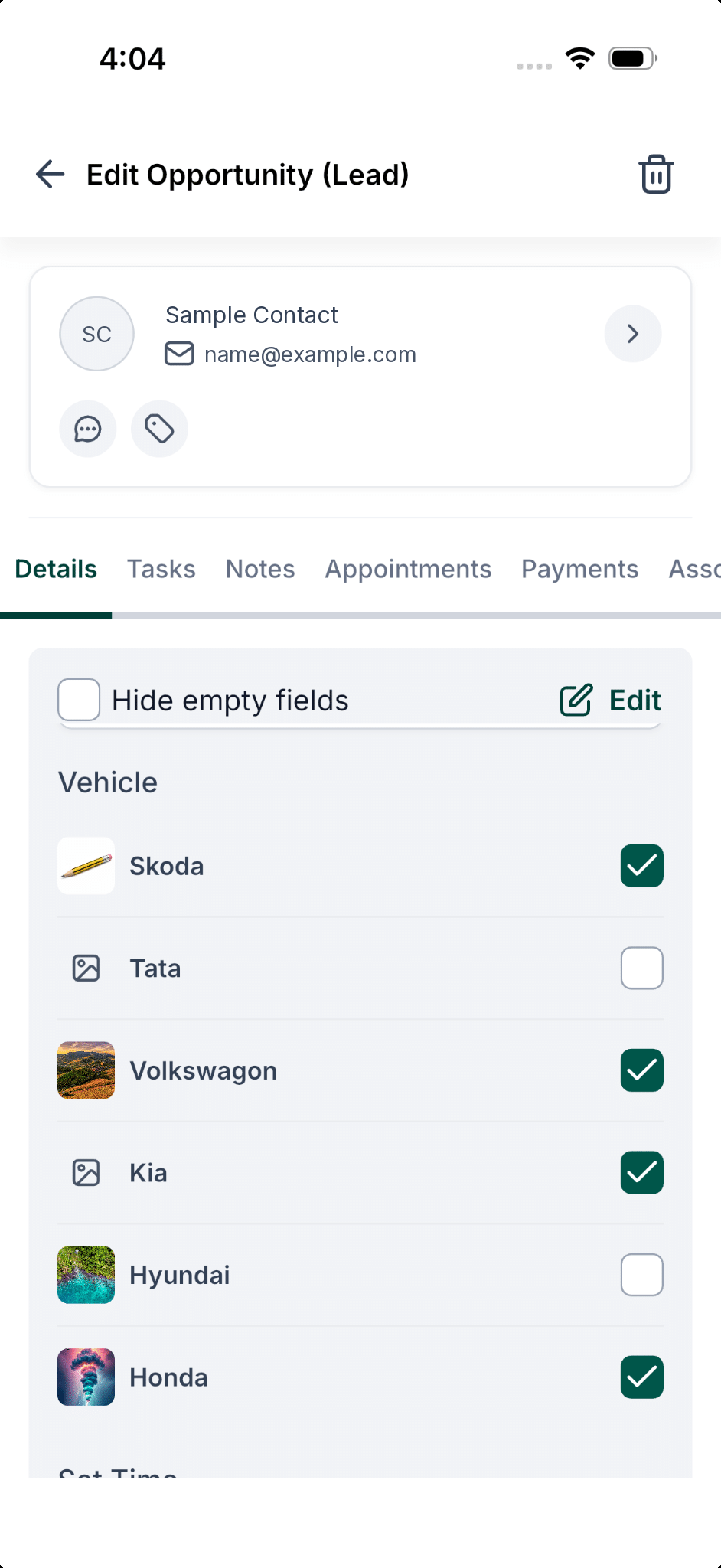
- In the app, open a contact or opportunity. The new fields appear in their folders, ready to edit.
Once the fields are saved on the web, your team will find them in the app the next time they open a record.
Choosing the Right Mobile App Custom Fields for Your Business
Before you add a new field, it’s worth stopping to think about what your team actually needs to record while they’re out. A few questions can help you decide:
- What does your team currently write down on paper, in their own phone notes or in a text to the office?
- Which details do you end up chasing people for once the work is done?
- Where do mistakes usually creep in, such as dates, times or links?
For example, a business that sends a different team member to each job might add a User field for the person on site, a Date & Time field for the visit and a Rich Text field for the job notes. Anyone opening that record on their phone can then see who’s going, when they’re due and what they need to know, with the notes still formatted the way they were written.
Start with the one or two fields that would save the most chasing. Add sensible validation to those, and let your team use them for a week or two. Then check in with them. Are the fields easy to find? Do the rules make sense, or are they getting in the way? Small adjustments early on make a big difference to how willingly a team uses the system.
A good rule of thumb is to keep validation tight where a mistake would cause a real problem, like a follow-up date, and keep it relaxed where flexibility helps, like general notes.
Mobile App Custom Fields Help Your Team Trust the System
When your team can update links, times and owners straight from their phone, and know that the system will catch an obvious slip, they’re far more likely to keep records up to date. That’s what makes the whole CRM useful, because a system is only as good as the information people put into it. Your reports are accurate, your reminders go out on the right days, and everyone can see who owns each job without having to ask.
Clean data from the field means fewer records to fix later, and that’s time back in your week.