Phone bookings tend to be the ones with missing details. Online, the client fills in your form as part of booking. On the phone, you’re focused on finding a time that works, and the questions your form would normally ask often get skipped. You can now attach a booking form to the service and rental bookings you create yourself in JuicyCRM, so every booking carries the same information, however it came in.
Phone Bookings Need the Same Details as Online Bookings
In one of my workshops, I talked about the bookings that come in out of the blue. You’re on the phone, you’re keen to lock in the time, and you want to get it done while the person is still on the line.
That’s a perfectly good way to take a booking. The challenge is what comes afterwards. Your online booking form is set up to ask the questions you need answered before the appointment. When a booking skips that form, those answers have to be chased later, or they only come to light when you arrive for the appointment.
Here’s why consistency matters so much:
- Your team prepares for every appointment using the same information.
- Your reports and automations work from the same fields, regardless of how the booking was made.
- Your clients get the same professional experience whether they book online or call you.
When you attach a booking form to the bookings you create, the details live in the same place for every client.
A small clinic is a good example. Most clients book online, but regular clients tend to ring the front desk. Online, every client answers the same intake questions. On the phone, it depends on who answers and how busy the morning is. Attaching the form closes that gap, so the practitioner sees the same answers for every appointment. Nobody has to remember which bookings came in by phone and which didn’t.
Three Things Change When You Attach a Booking Form
This update has been designed to save time while you’re creating the booking. Here’s what you’ll notice:
- The right form is already selected. The form you’ve configured is preselected, so you don’t need to go looking for it.
- Contact details fill themselves in. Name, email and phone autofill from the contact you’ve selected.
- Online-only elements are left out. CAPTCHA, product and payment elements are excluded when you fill in a form this way.
That autofill is my favourite part. As I said on a recent call, “part of it auto-fills in with their name and their phone number and their email address.” You only need to complete the questions that are specific to the booking, which keeps the call moving.
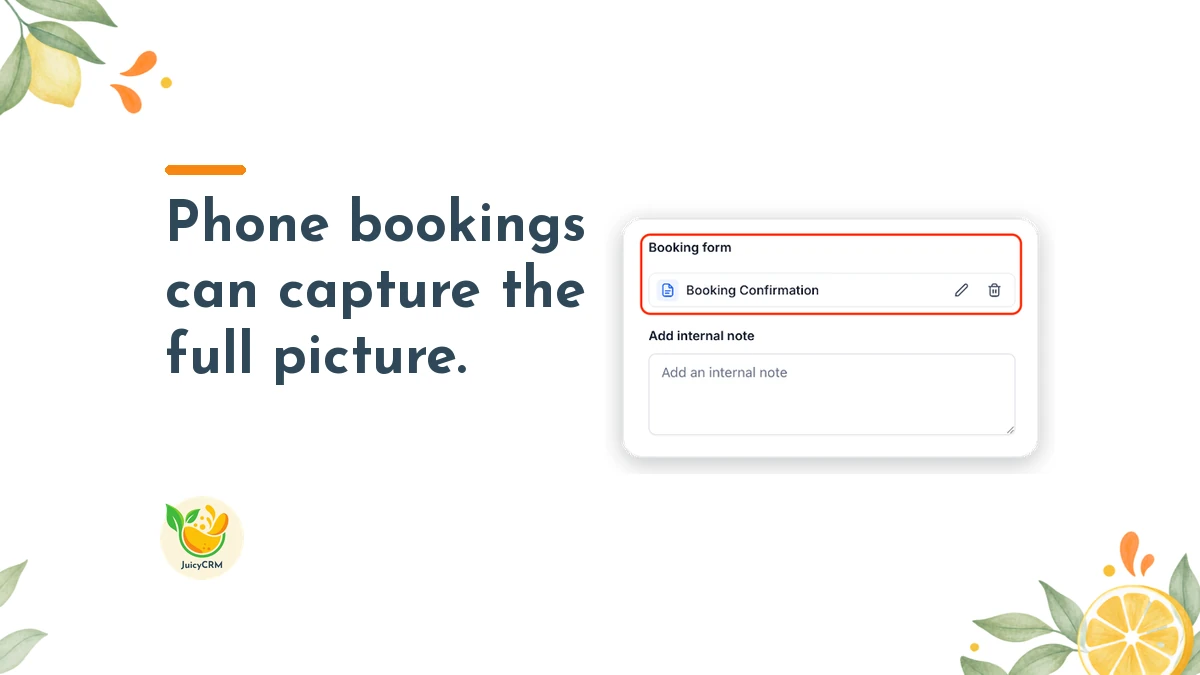
Once the booking is saved, you can view the submitted form from the booking details. That means anyone on your team can open the appointment and see exactly what was captured, without hunting through notes or messages.
Five Steps to Attach a Booking Form When You Create a Booking
The steps are simple, and they slot straight into the way you already create bookings:
- Start creating a service or rental booking from the booking window.
- Select the contact.
- In the Booking form section, click Attach form.
- Complete the form. Name, email and phone will already be filled in for you.
- Create the booking.
To check what was captured later, open the booking and you’ll find the submitted form in its details.
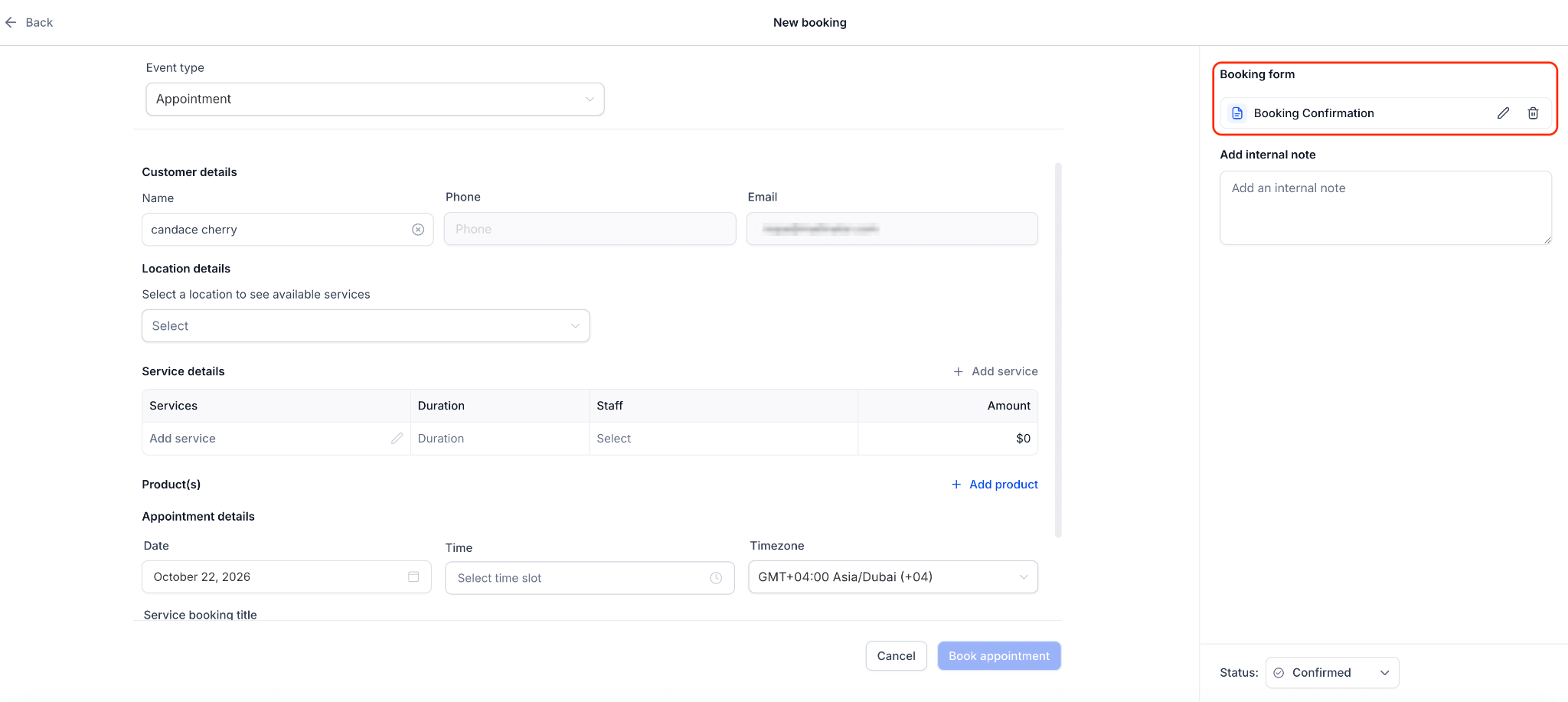
Attach a Booking Form While the Booking Is Being Created
There’s one timing detail to keep in mind. For now, you can only attach a form while you’re creating the booking. It can’t be added or edited once the booking has been made.
The best way to work with this is to make it part of your routine. Whenever you or your team take a booking by phone, attach the form as part of creating it, every time. A few habits help:
- Keep your booking form questions short, so they’re easy to complete while the client is on the line.
- Show everyone who takes bookings where the Booking form section is and how to attach a form.
- If a few key questions really matter, ask them first so you have the answers before the call ends.
Before you start using this on calls, open your booking form and read it as if you were asking the questions out loud. Questions that feel natural on a screen can sound stiff over the phone. A quick review now means your team can work through the form in a friendly, conversational way, and your client won’t feel like they’re filling in paperwork.
If your team shares the job of taking calls, it’s worth writing the steps on a single page and keeping it somewhere everyone can find. A short checklist at the start makes the habit stick far faster than reminders after the fact.
An Attached Booking Form Helps You Prepare for Every Appointment
The real value of this update shows up on the day of the appointment. When all your bookings hold the same answers, your preparation becomes predictable.
Think about the questions on your online form now. They might cover what the client needs help with, any access details for a site visit, the size of the job, or anything you need to bring along. Those are the details that make an appointment go smoothly. When they’re captured on phone bookings too, your team arrives prepared, and the client feels looked after from the start.
It also helps with the work you do after the booking. If any of your follow-up depends on the answers in your form, such as sending the right information before the appointment, having those answers on every booking means more of your clients get the right message at the right time.
Rental Bookings Benefit When You Attach a Booking Form
This update covers rental bookings as well as services, which is great news for anyone who hires out equipment, spaces or vehicles. Rental bookings often depend on specific details, like what’s being hired, how it will be used or where it’s going. Your online form is likely set up to ask exactly those questions.
When someone calls to hire something, attaching the form means you capture those same details on the spot. You’ll have what you need to prepare the rental, and your records will match the bookings that came in online.
Attach a Booking Form and Start Every Appointment With the Full Picture
When phone bookings and online bookings carry the same details, your calendar becomes something your whole team can rely on. The answers are already waiting in each booking, so your time goes into the work you were booked for, and your clients notice the difference.
Every booking can now start with everything you need to know.