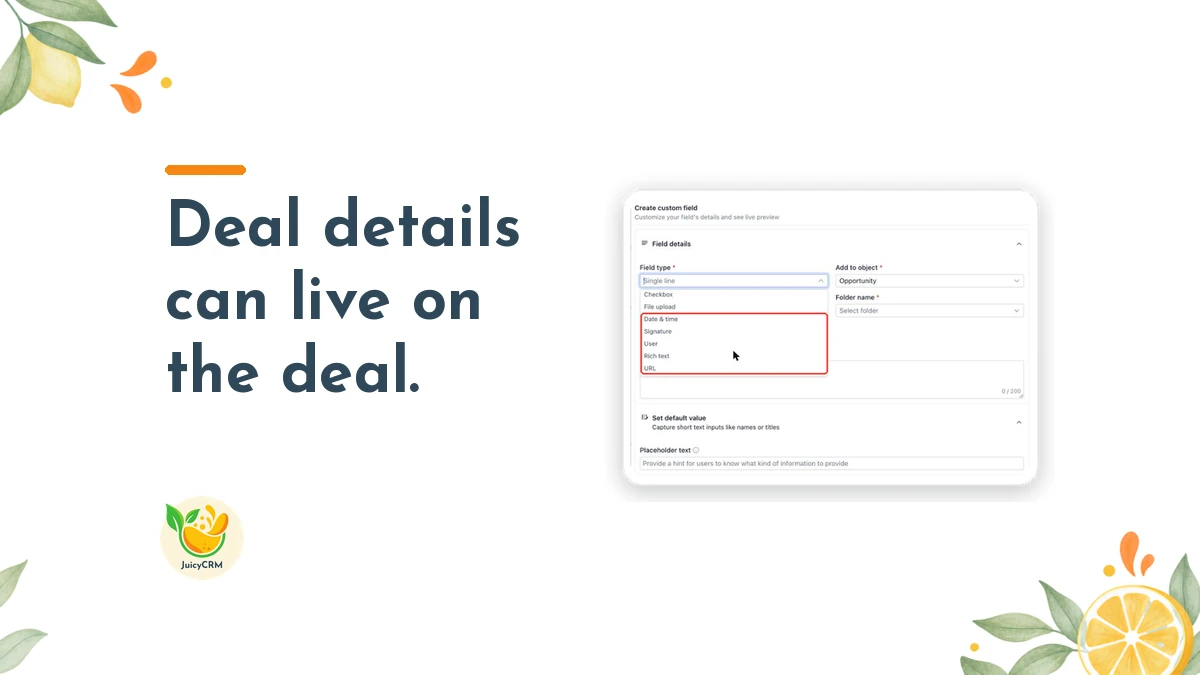
One client can easily mean three jobs. A landlord with three properties, a business with two sites or a family booking separate services all sit under one contact, but each job has its own address, dates and people. Opportunity custom fields give every one of those deals a place for its own details, and JuicyCRM added a set of new field types for them.
Repeat clients are the best clients, so it’s worth keeping their work tidy. The new fields can also be added as columns in your pipeline list and used in your filters, so you can pull up deals by the details that matter to you.
Each Deal Deserves Its Own Details, Separate From the Contact
Here’s a situation that comes up a lot. One of our clients explained it well while setting up their forms: “you might have more than one opportunity for the same contact, different property address or whatever, so I made some changes to the form with the custom fields to be opportunity related, not contact related.”
That’s exactly the right instinct. Contact fields describe the person. Opportunity fields describe the deal. When a detail belongs to a specific job, like a site address, a project date or the team member running it, it belongs on the opportunity.
With each deal holding its own details, you can open any opportunity and see what that job needs without scrolling through notes or guessing which address goes with which piece of work. Your team can pick up a deal they haven’t touched before and understand it straight away.
Picture a builder who is quoting a bathroom renovation and a new deck for the same homeowner. The person is the same, but the two jobs have different start dates, different scopes and possibly different team members leading them. With the details on each opportunity, both jobs stay clear, and nothing from one gets mixed up with the other.
The New Opportunity Custom Fields You Can Add
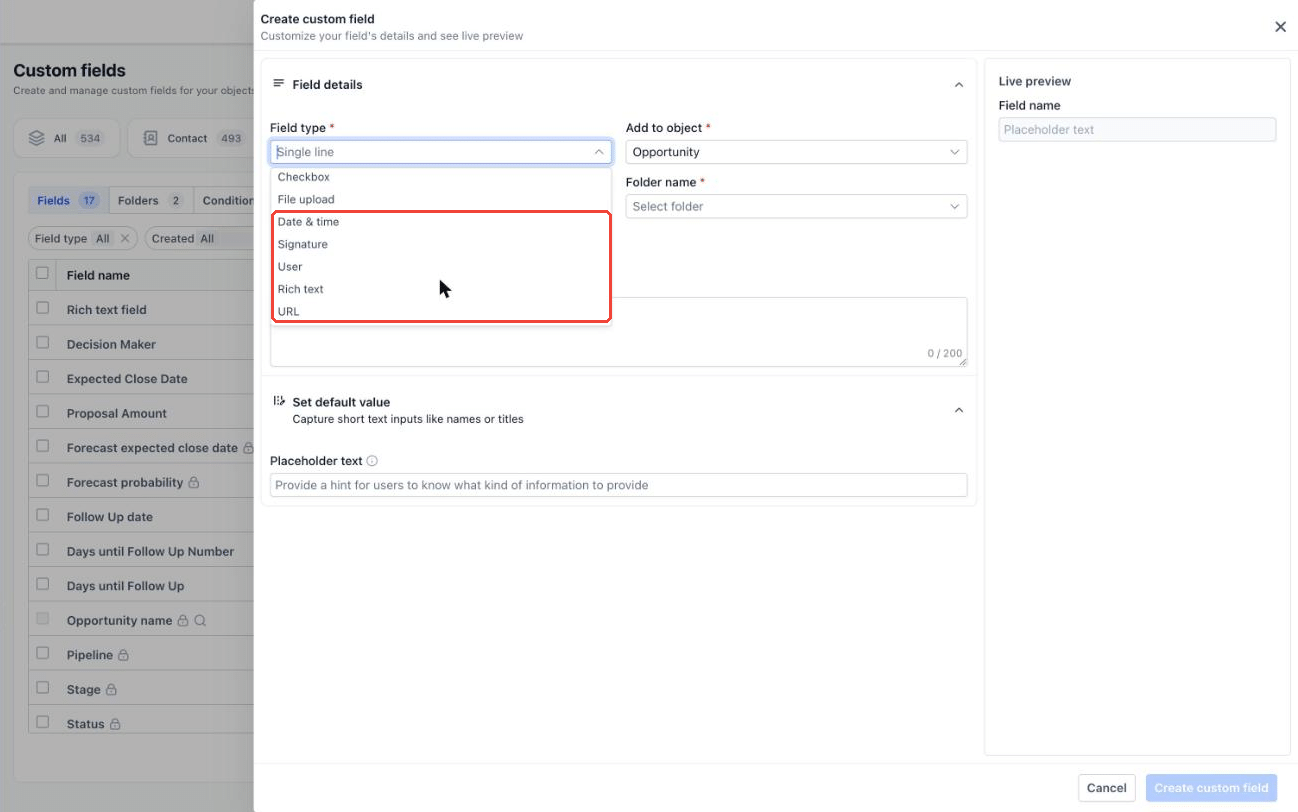
The new field types are designed around the kinds of details that come with real deals. Here’s what’s available:
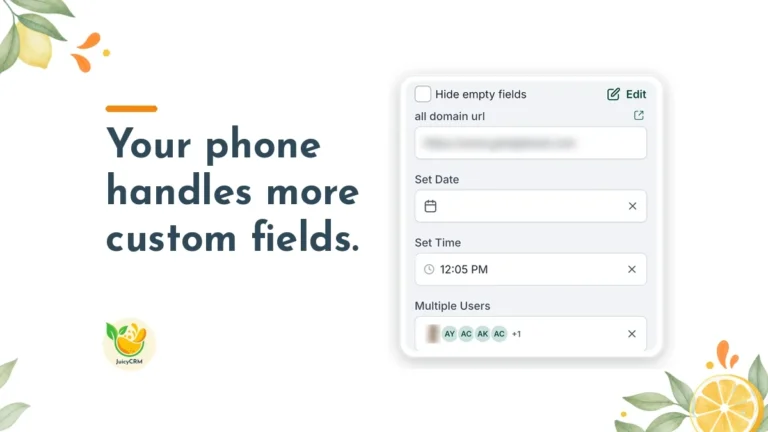
- URL fields hold links and come with domain controls, so you can keep links to the places you trust, like your shared drive or quoting tool.
- Date & Time fields hold a date and a time together, with date limits you can set to keep entries within a sensible range.
- Rich Text fields hold formatted notes, so scope details, bullet lists and key points stay readable.
- User fields link a deal to one or more team members, which makes it clear who is responsible for what.
- Checkbox and radio options can now include images, and radio options can include icons too, so choices are easier to recognise at a glance.
Each of these sits inside the opportunity itself, in the folders you choose. You can be as simple or as detailed as your business needs.
Opportunity Custom Fields Work in List View and Filters
A field earns its place when you can find it again, and this part of the update makes that easy. The new opportunity custom fields can be added as columns in your opportunities list view, and you can use them in advanced filters.
That opens up some practical ways to work:
- You can add a User field as a column to see who owns every deal in your pipeline at a glance.
- You can filter by a Date & Time field to see every job booked for next week.
- You can filter by a radio option to pull up every deal of a particular type.
- You can add a URL field as a column so the link to each job’s folder is one click away.
So your pipeline becomes something you can sort and slice to answer real questions. Which deals are with which team member? What’s coming up soon? Which jobs are a particular type? The answers are in your list view, without exporting anything to a spreadsheet.
Creating Opportunity Custom Fields Takes a Few Minutes
Setting these up is straightforward. Here are the steps:
- Go to Settings > Custom Fields and select Opportunity.
- Click Create field.
- Choose the field type, set its options and pick the folder it belongs in.
- Click Create custom field.
- Open any opportunity and fill in the new field from its Fields section.
It’s a good idea to add one or two fields first, use them on a handful of deals and see how they feel. You can always add more once your team is comfortable. Start with the deal detail your team asks about most often, because that’s the field that will save the most time.
One Opportunity Custom Fields Setting to Decide Before You Save
There’s one setting that needs a bit of thought up front. When you create a User field, you choose whether it can hold more than one person. That setting cannot be changed after the field is created.
So before you save a User field, picture how your business actually works. Does one team member own each deal from start to finish? Then a single person makes sense. Do deals usually involve a lead and a helper, or a salesperson and an installer? Then allow multiple people.
If you’re unsure, think about the busiest version of your business, not the quietest one. A field that allows more than one person still works perfectly well when only one person is assigned. A field that allows only one person cannot grow with you.
Getting the Most From Opportunity Custom Fields in Your Pipeline
A few simple habits make these fields far more useful over time:
- Name each field clearly, so anyone on your team knows what it’s for without asking.
- Group related fields in the same folder, such as all job details together.
- Keep the number of fields manageable, because a long form is harder to fill in on a busy day.
- Use date limits and domain controls where a wrong entry would cause a problem down the track.
- Add your most useful fields as list view columns, so the information works for you every day.
- Show your team where the new fields live and what goes in each one before you rely on them.
It’s also worth looking at your existing contact fields with fresh eyes. If any of them really describe a job rather than a person, such as a property address or a project start date, they may serve you better as opportunity fields. That’s the change our client made, and it meant each of their deals could stand on its own.
Opportunity Custom Fields Turn Your Pipeline Into a Clear Picture
When each deal carries its own dates, links, notes and owners, your pipeline stops being a list of names and becomes a clear picture of the work in front of you. You can see what’s happening, who’s on it and what’s coming next, all from one view.
Your team can open any deal and know straight away where it stands.