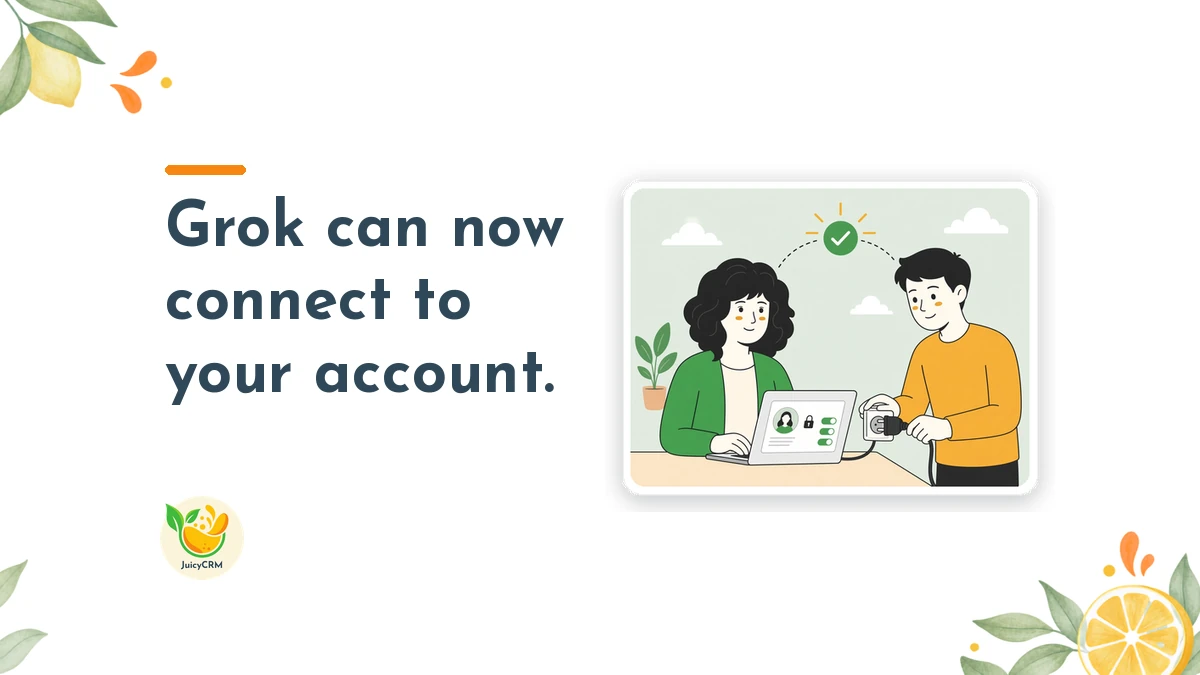
Let me be really clear about the best part of this update first: you decide what Grok can reach. You can now connect Grok to JuicyCRM directly from your settings, and when you do, you choose exactly which parts of your account it can access.
If Grok is already the AI assistant you use every day, it can now work with your account data directly, on your terms.
A Direct Connection Means Less Copying and Pasting
Many people who use an AI assistant for their business have a familiar routine. You copy some details out of one window, paste them into another, ask your question, then copy the answer back again. It works, but it takes time, and it’s easy to lose track of which version of the information is the latest.
When you connect Grok to JuicyCRM, the assistant can work with your account data directly. That means the information it works from comes straight from your CRM, rather than from whatever you happened to paste in.
You stop moving information between tabs and get straight to acting on what you learn. Your CRM stays the single home for your client information, and your assistant works from that same source.
You Decide What Grok Can Access in JuicyCRM
Connecting any tool to your business data deserves a bit of thought, and this connection has been built with that in mind. When you authenticate, you choose exactly which parts of your account Grok can access.
That control matters. Every business has information that suits an AI assistant and information that you’d rather keep to a smaller circle. You get to draw that line yourself, rather than handing over everything by default.
Here’s a helpful way to think about it. Give the connection access to what it needs for the jobs you have in mind, and nothing more. When you connect, you choose exactly which parts of your account Grok can access, so you can start small.
Three Steps to Connect Grok to JuicyCRM
Setting up the connection takes just a few minutes, and the only step that needs any real thought is the last one.
- Go to Settings > Integration.
- Find Grok and add it.
- Authenticate, choosing the permissions you want it to have.
That’s all there is to it. Once you’ve authenticated, the connection is in place with the permissions you selected.
Grok connects in the same way as another AI assistant connection in your account, so if you’ve already set that one up, the process will feel familiar.
Choosing Permissions When You Connect Grok to JuicyCRM
The permissions step is the most important part of the setup, so it’s worth deciding before you start. A few questions can help:
- What do you actually want Grok to help you with in your business?
- Which parts of your account would it need to reach to do those jobs?
- Is there any information that should stay with you and your team only?
Write your answers down before you open your settings. It turns the permissions step into a quick checklist rather than a decision you make on the spot.
Put it this way: match access to purpose. If you mainly want help with one area of your business, start with access to that area.
Talk With Your Team Before You Connect Grok to JuicyCRM
If you have a team, it’s worth a quick conversation before you set this up. Your team works with your client information every day, so they’ll have useful views on what should and shouldn’t be shared with an AI assistant.
It also helps everyone understand how the connection fits into your business. When your team knows what Grok can reach, and why, they can use it with confidence and know where the boundaries are.
Here are a few points worth agreeing on together:
- Decide who in your business will use the connection.
- Agree which parts of the account it will be able to access.
- Agree what should stay with you and your team only.
Choose Access Carefully When You Connect Grok to JuicyCRM
I always think it’s worth being thoughtful about what you share with any tool connected to your CRM. With this connection, that choice happens when you authenticate, because that’s when you choose exactly which parts of your account Grok can access. So it pays to have your answers ready before you start.
In my view, that’s good practice for every tool connected to your CRM, not only AI assistants. Giving each connection the access it needs and no more keeps you in control of where your information goes.
Your Client Information Stays on Your Terms
Connecting an AI assistant to your CRM is a big step for many businesses, and it’s natural to want to get it right. The good news is that this connection puts the decisions in your hands. You choose whether to connect, and you choose what Grok can reach when you do.
You can now bring the AI assistant you prefer into your CRM while keeping full say over your client information.