Print a QR code once, and it keeps working even if the page address changes or you move to a new domain. That’s what the new website QR codes in JuicyCRM do. You can create one for any page on your site in one click, and because each code is tied to the page itself rather than a fixed link, it follows the page wherever its address goes.
That matters because a code on a menu, a flyer or a shop window can stay in use for years, long after you’ve forgotten where it points.
Printed Website QR Codes Need to Last as Long as the Print
Think about everywhere your business shows up in print. You might have menus on the table, flyers in letterboxes, a sign in your shop window and business cards in your wallet. Each of these can carry a QR code that takes someone straight to the right page on your website.
The trouble with a standard QR code is that it points to a fixed link. If you later tidy up your website, rename a page or move to a new domain, that link may no longer lead anywhere useful. The printed material is still out in the world, and the code on it no longer does its job.
That’s why this update is so useful. A QR code created from your website builder is tied to the page, not to a fixed link. If the page’s address changes, or your domain changes, the code still takes people to the right place.
Imagine a café that prints a thousand menus with a code linking to its specials page. A year later, the owner refreshes the website and the specials page gets a new address. With a fixed-link code, every one of those menus would need replacing or a sticker over the code. With a code tied to the page, the menus carry on working, and the owner doesn’t have to think about it.
You can print knowing your website can keep growing and changing without leaving old codes behind.
Creating Website QR Codes From the Page Builder
The quickest way to make a code is straight from the page you’re working on.
- Open a website that has a connected domain.
- Open the page you want in the builder.
- Click the QR icon next to the page URL.
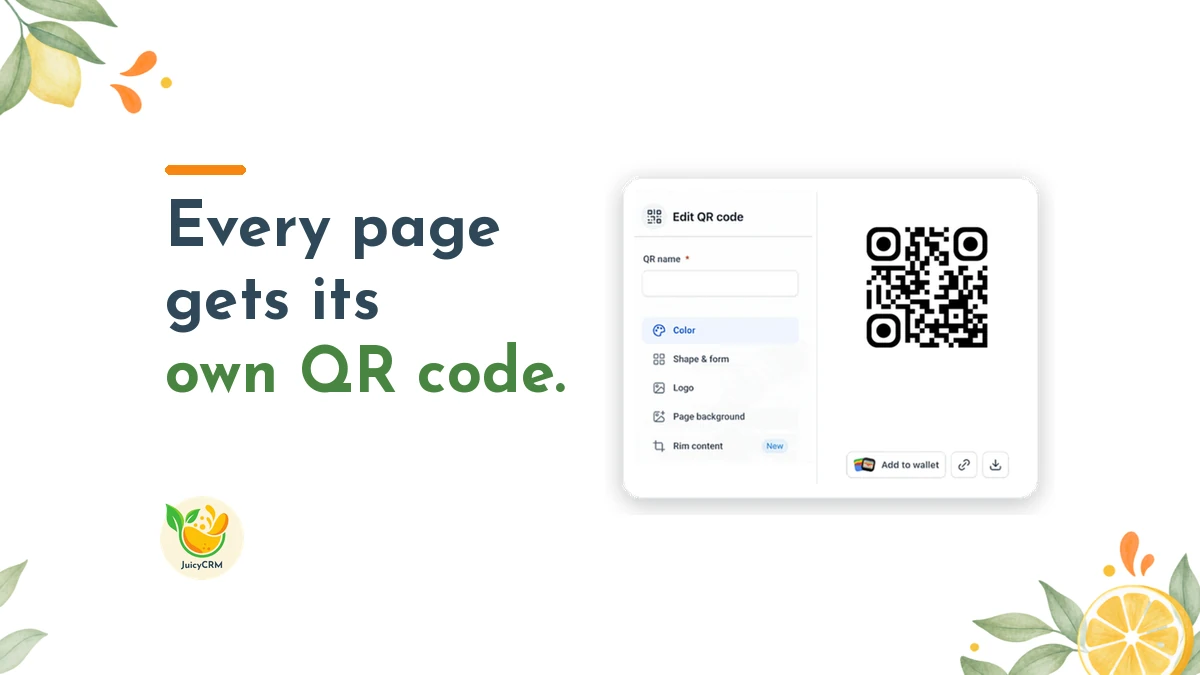
That’s the one-click option. Your code is created for that page, ready to download or customise.
This is handy when you’ve just built a new page, such as a seasonal offer or an event page, and you want a code for it while it’s fresh in your mind. It also means you can create the code at the same moment you’re checking the page looks right, so the page and the code are ready to go out together.
Creating Website QR Codes From the QR Codes Area
If you prefer to manage all your codes in one place, there’s a second way to create them:
- Go to Sites > QR Codes.
- Click Create QR.
- Choose the Website type.
- Pick the site and the page you want the code to open.
Both methods create a code tied to the page, so choose whichever suits the way you work.
You may also notice a small naming change in this area. The older plain-link QR type has been renamed URL. Any codes you’ve already made with it keep working exactly as before, so there’s nothing you need to update.
Download and Brand Your Website QR Codes
Once your code is ready, you can download it in three formats:
- PNG works well for social media posts, emails and most everyday uses.
- SVG stays sharp at any size, which makes it a good choice for signs and large prints.
- PDF is often the easiest format to hand to a printer.
If you’re not sure which one to use, ask your printer or designer what they prefer. Most will be happy to tell you, and it saves a round of back and forth later.
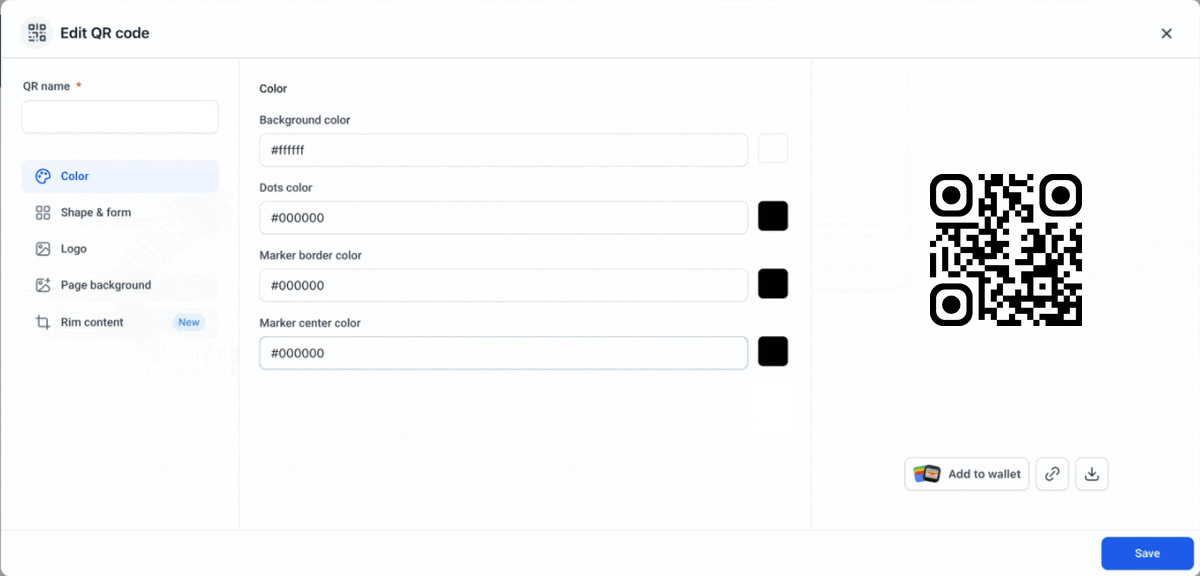
You can also click Edit QR to change the colours and add your branding. A code in your own brand colours looks like part of your design rather than an afterthought. Just keep enough contrast between the code and its background so phones can scan it easily, and test it before you print.
There’s one more option worth knowing about. You can add a code to a phone wallet, which keeps it on hand whenever you need to show it to someone in person. That’s useful at markets, events or networking catch-ups, when someone asks where they can find you online.
Putting Website QR Codes to Work Around Your Business
Here are some practical places where a code tied to a page can make a real difference:
- Menus can link to your full menu page, specials or allergen information, so diners always see the latest version.
- Flyers can link straight to a booking page or an offer page, so interested people can act while they’re holding the flyer.
- Shop windows can link to your opening hours, current promotions or a contact page, which helps people who pass by when you’re closed.
- Business cards can link to an about page or a booking page, so new contacts can learn more or book a time without typing anything.
The key is to link each code to the page that matches the moment. Someone scanning a flyer about an event wants the event page, not your home page. A code that lands them in the right place makes it easy for them to take the next step.
Getting the Most From Your Website QR Codes
These habits will help your codes do their job well:
- Create a separate code for each page you want to promote, so every printed piece leads somewhere specific.
- Add a short line next to the code that tells people what they’ll get, like “Scan to see our menu” or “Scan to book”.
- Scan every code with your own phone before it goes to print.
- Keep a simple list of where each code has been printed, so you know which pages need to stay live.
- Keep the pages your codes point to up to date, because the code will always lead people there.
That last point is worth repeating. Because your codes now follow the page, the page itself becomes the thing to look after. Update the content whenever something changes, and every code that points to it will show the latest information automatically.
Website QR Codes Let Your Print Keep Up With Your Website
Your website will change over time. You’ll rename pages, refresh your offers and perhaps move to a new domain one day. With codes tied to the page, your menus, flyers, shop windows and business cards keep sending people where they need to go through all of it.
So go ahead and print. Your website is free to keep changing around it.