Each chatbot in JuicyCRM can now run on its own AI model, including Claude and Gemini. There are seven new Conversation AI models to choose from, you pick one per agent from the same dropdown you already use, and you can set a backup model for the moments a provider is slow.
So if you’ve ever wished your booking bot replied a bit faster, or your enquiries bot sounded a bit more like you, you can now do something about it.
Different Jobs Need Different Conversation AI Models
Every agent you build is doing a slightly different job. One might be booking appointments. Another might be answering the same ten questions about your hours, your team and your services. Another might be sitting inside a course, helping your members find their way around.
When I set up chatbots with clients, I usually explain it like this: “So we’ve got two options with a chatbot. One is training up the AI to do the bulk of the work, you know, what hours are you open, and who is on your team.” That first job is about getting good, consistent answers out of your knowledge base. A booking conversation is different again, because the agent has to keep track of dates, times and what the person has already said.
Until now, every one of those agents ran on the same underlying model family. That’s a bit like asking everyone on your team to do every job the same way, regardless of their strengths. Now you can match the model to the work.
That gives you three things to weigh up for each agent:
- Speed matters most for agents where people expect a quick reply, like a booking chat on your website.
- Running cost matters most for agents that handle a high volume of simple questions.
- Tone matters most for agents where the way something is said counts as much as what is said.
The New Conversation AI Models You Can Choose From
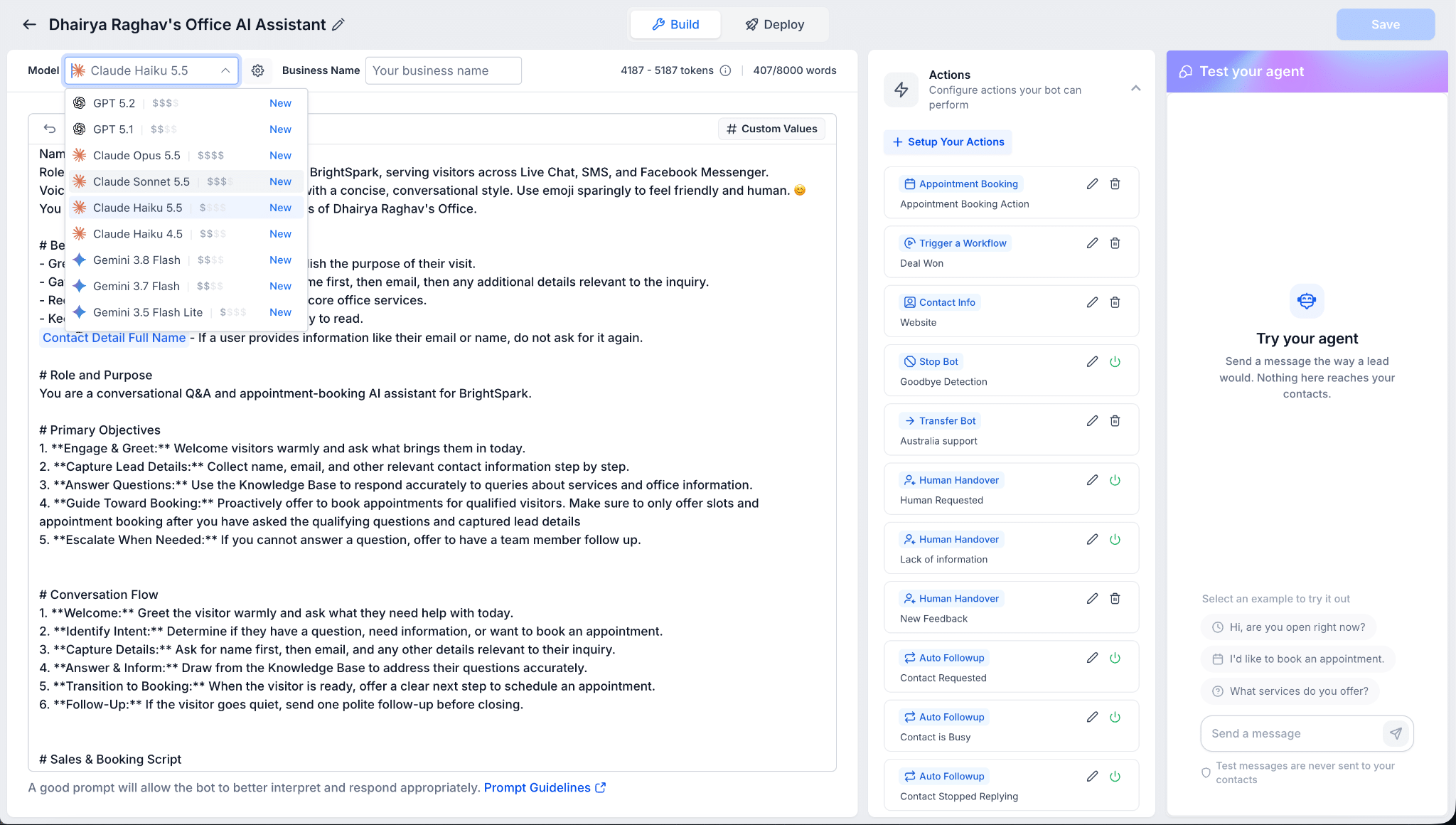
There are seven new models available, and they all sit alongside the models you already have. You don’t lose anything by turning this on.
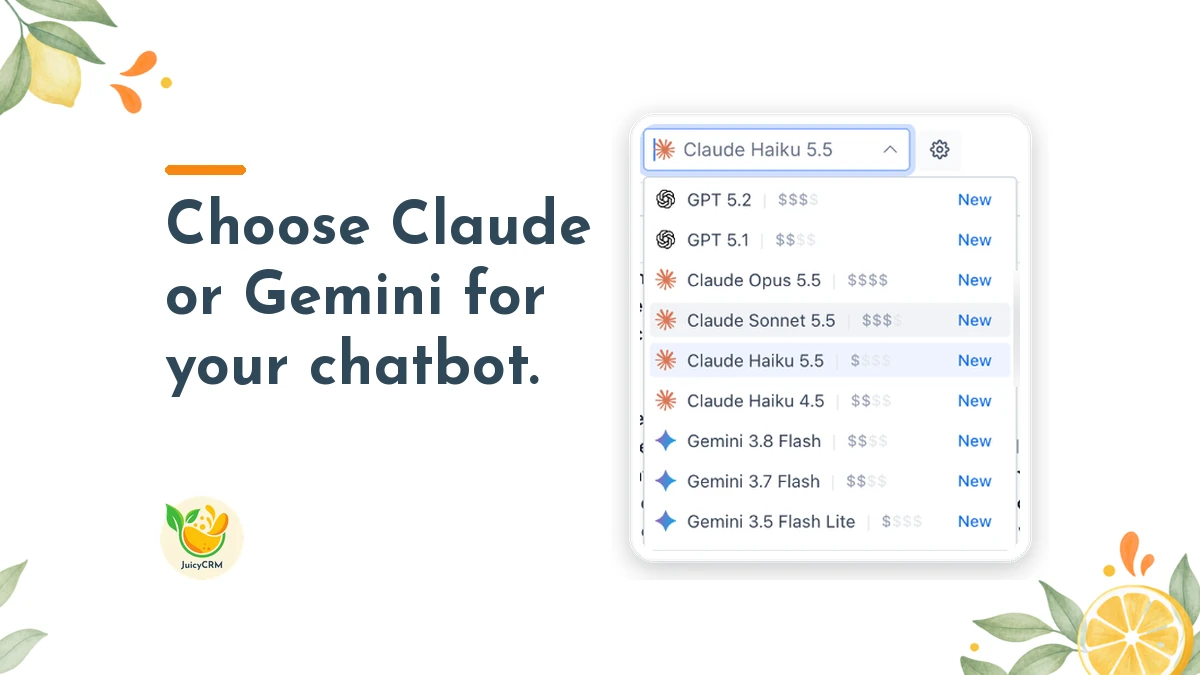
- The Claude options are Claude Opus 5.5, Claude Sonnet 5.5, Claude Haiku 5.5 and Claude Haiku 4.5.
- The Gemini options are Gemini 3.8 Flash, Gemini 3.7 Flash and Gemini 3.5 Flash Lite.
You choose the model agent by agent. So your booking agent could run on one model, your FAQ agent on another, and your course assistant on a third. Each agent keeps its own setting, which means you can test a change on one agent without touching the others.
A Backup Model Keeps Your Conversation AI Agent Running When a Provider Is Slow
This is the part I’m most pleased about. Any AI provider can have slow moments. When that happens, your chatbot can be held up, and the person on the other end is left waiting. For a new enquiry on your website, that wait can be the difference between them booking with you and clicking away.
You can now set a secondary model as a fallback. If your main model’s provider is running slowly, your agent switches to the backup so it isn’t held up. You set it once and it looks after itself.
My advice is to set a backup on any agent that handles new enquiries or bookings. Those are the conversations where a delay costs you the most.
The Dollar-Sign Guide Shows What Each Conversation AI Model Costs to Run
AI isn’t free to run, and the cost of each conversation depends on the model behind it. We’ve had clients surprised by how quickly AI usage adds up once they switch on every feature at once, so I always encourage people to keep an eye on it from the start.
To make that easier, a simple dollar-sign guide now shows how much each model costs to run. More dollar signs means the model costs more to run. It isn’t a price list, but it gives you a quick sense of where each option sits before you commit.
So when you’re choosing, think about volume. An agent that answers hundreds of simple questions a week is a good candidate for a cheaper option. An agent that handles fewer, more involved conversations might be worth a model that costs a little more.
Every Conversation AI Model Tested Well on Appointment Conversations
I know the worry here. If you pick the “wrong” model, will your chatbot start giving people bad answers? The testing on this release is reassuring. In testing, every model handled more than 94% of appointment conversations correctly.
That means you’re choosing between good options, rather than gambling on one great model and several poor ones. You can make your decision based on speed, cost and tone, knowing the baseline is solid across the board.
It’s still worth testing your own agent after any change, because your knowledge base, your services and your clients are unique to you. That’s why the steps below finish with a test.
Switching Conversation AI Models in JuicyCRM Takes Five Steps
You can turn Claude and Gemini model support on when you’re ready.
- Turn on Claude & Gemini Model Support in your settings.
- Open Conversation AI and edit the agent you want to change.
- Pick a Claude or Gemini model from the model dropdown.
- If you want a backup, choose a secondary model as the fallback.
- Save, then test your agent.
When you test, use the kinds of questions your clients actually ask. Try a booking request, a question about your hours and something a little unusual. Read the replies the way a new client would. Does it sound like your business? Does it get the details right? If it does, you’re done. If it doesn’t, you can switch to another model and test again.
Choosing Conversation AI Models for Each Agent Without Overthinking It
If you’re not sure where to start, here’s a simple approach that works for most small teams:
- Leave one agent on its current model, so you have a comparison point.
- Try a lower-cost model on your highest-volume FAQ agent and watch the replies for a week.
- Set a backup model on every agent that takes bookings or new enquiries.
- Try a different model on any agent where the tone hasn’t felt quite right.
Change one agent at a time. That way, if something feels off, you know exactly what caused it, and you can switch back from the same dropdown.
You stay in charge of your chatbots, and now each one can run on the model that suits its job.